Downgrading a subscription as a merchant
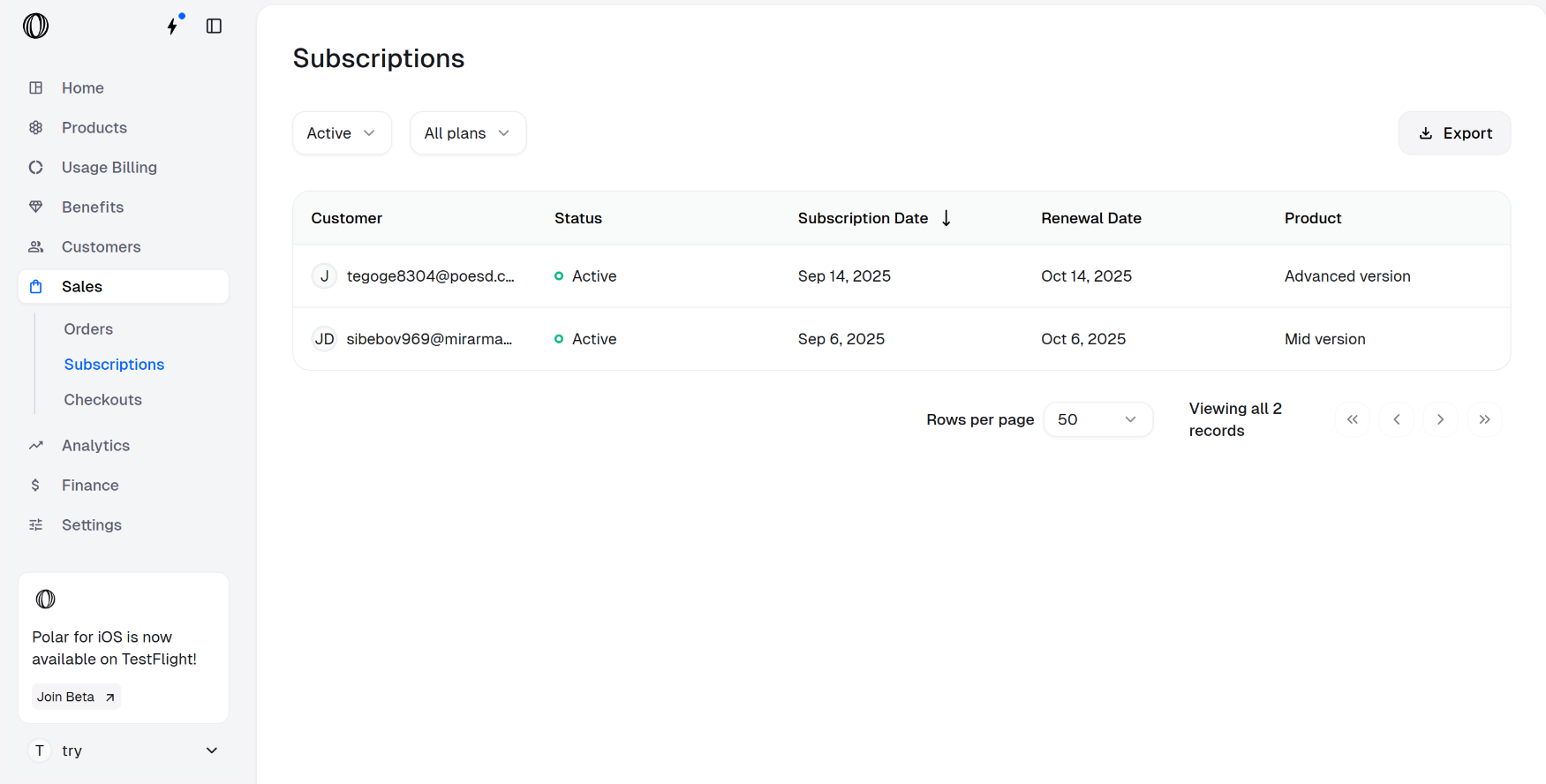
Go to Sales > Subscriptions
In the Polar dashboard sidebar, navigate to Sales > Subscriptions for your organization.
You can also go directly to:
https://polar.sh/dashboard/${org_slug}/sales/subscriptionsSelect the subscription to be downgraded
Click on the subscription you want to downgrade. The subscription details page opens up as shown below. Click on Update Subscription.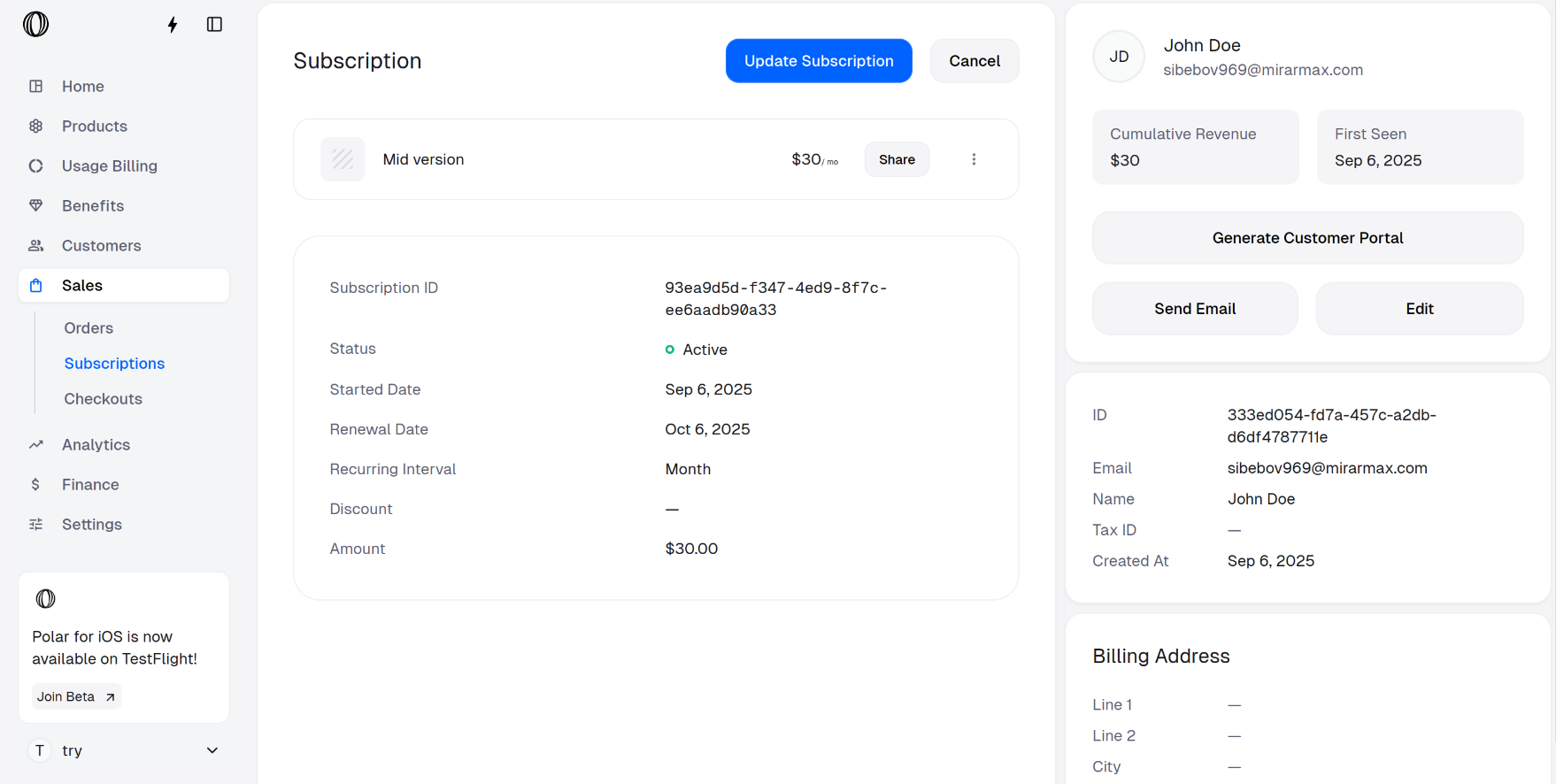
Choose the plan and the proration behavior
Select the New product (plan to downgrade to) and the Proration behavior from the dropdown menu.There are two types of proration: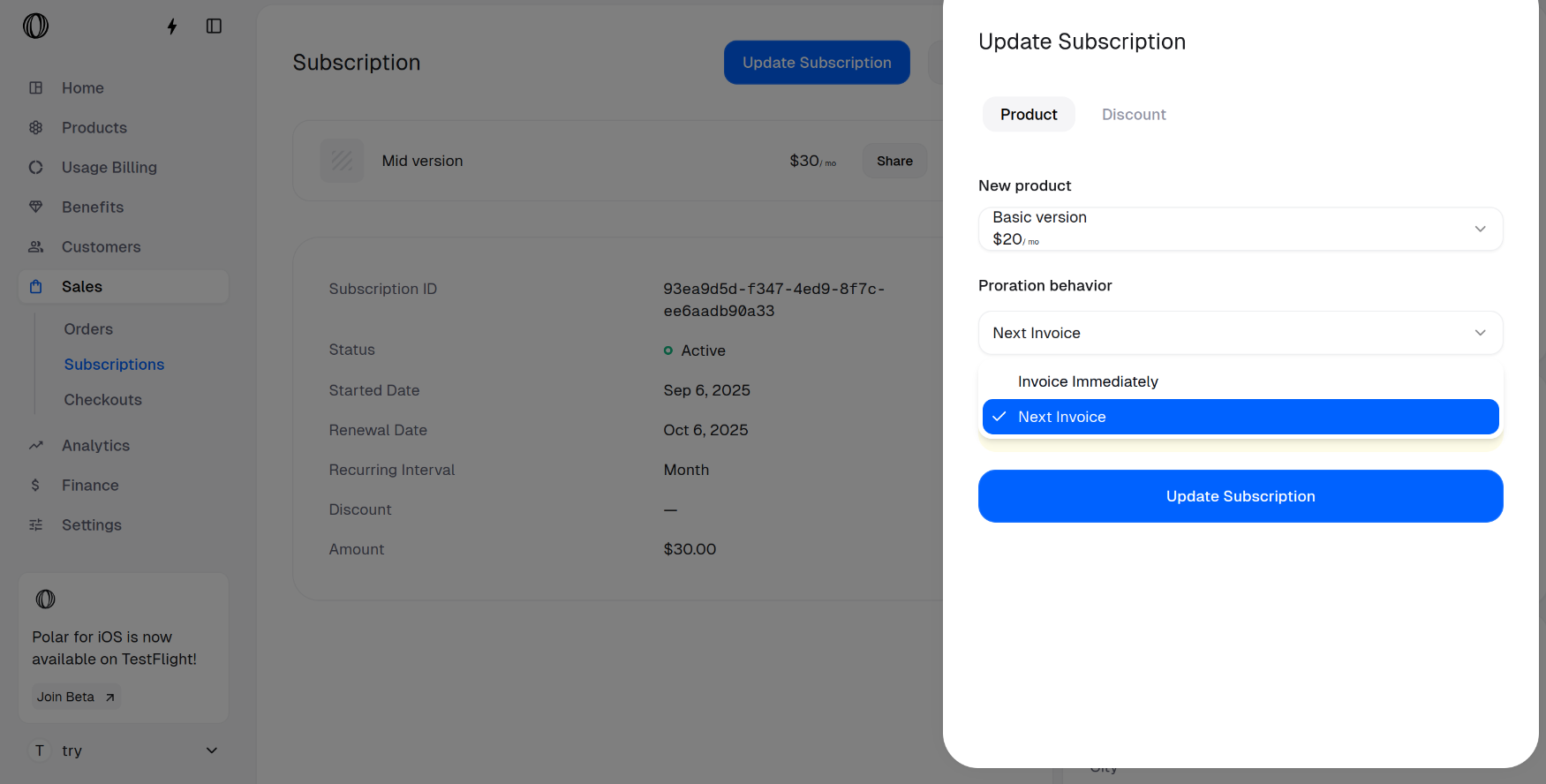
Regardless of the option, the subscription is downgraded immediately, only the invoicing happens according to the selected Proration behaior.
- Next invoice: The customer is charged (or credited) in the upcoming invoice for the difference.
- Invoice immediately: The customer is charged (or credited) right away for the difference.
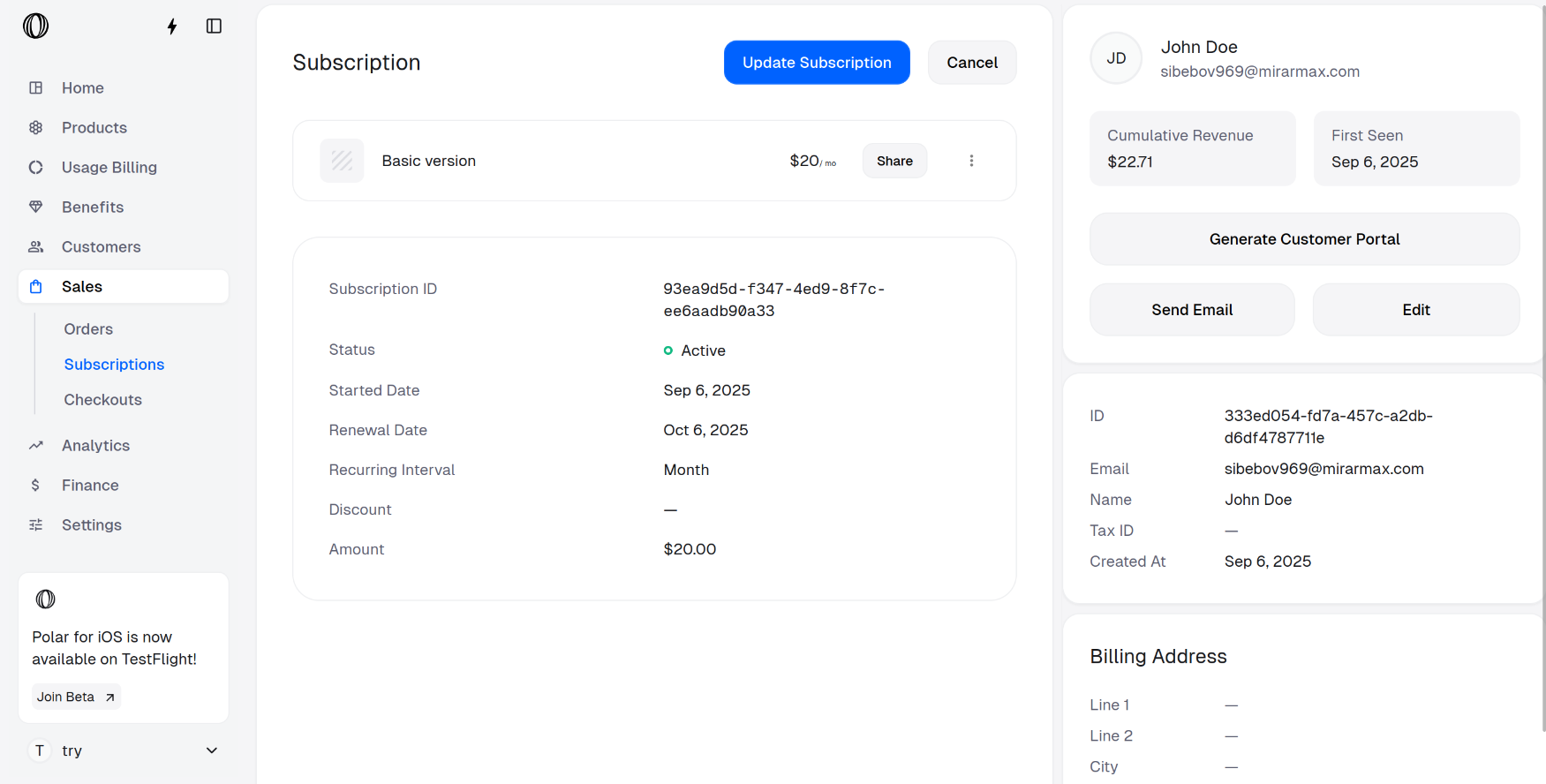
Note that merchants can disable customer-level upgrades or downgrades in the portal by toggling OFF Allow price change setting.
Downgrading a subscription as a customer
Open email and click the purchase link
Open the email you received after purchasing the subscription. Click the Access my Purchase link to go to the Customer Portal, where you can downgrade your subscription.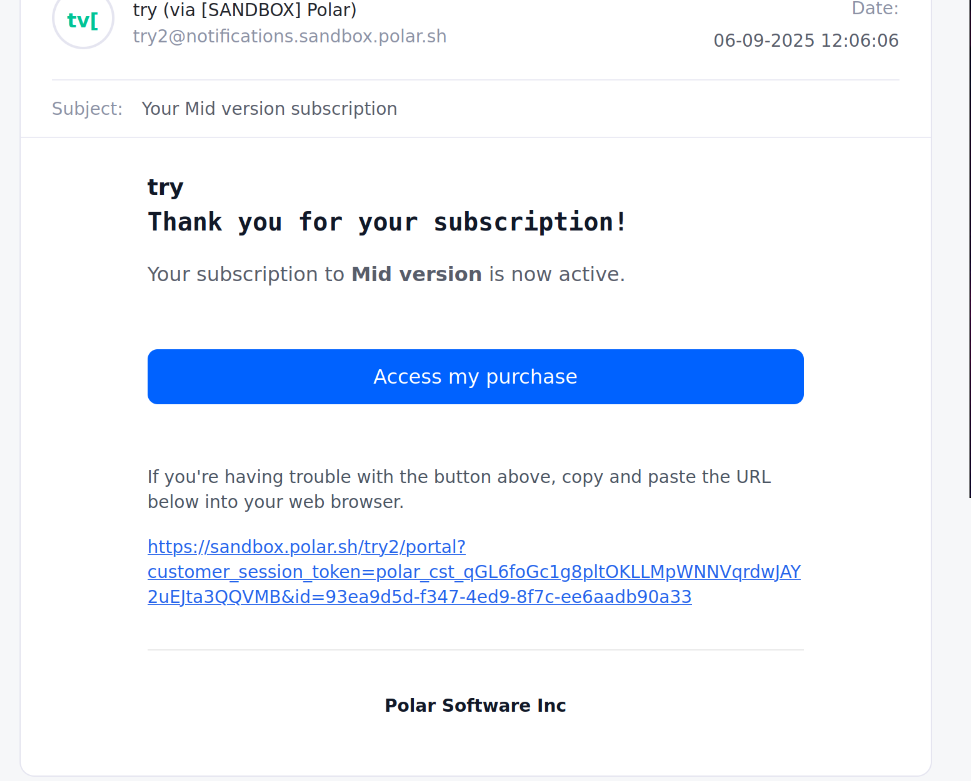
Browse Overview > Subscriptions in Customer Portal
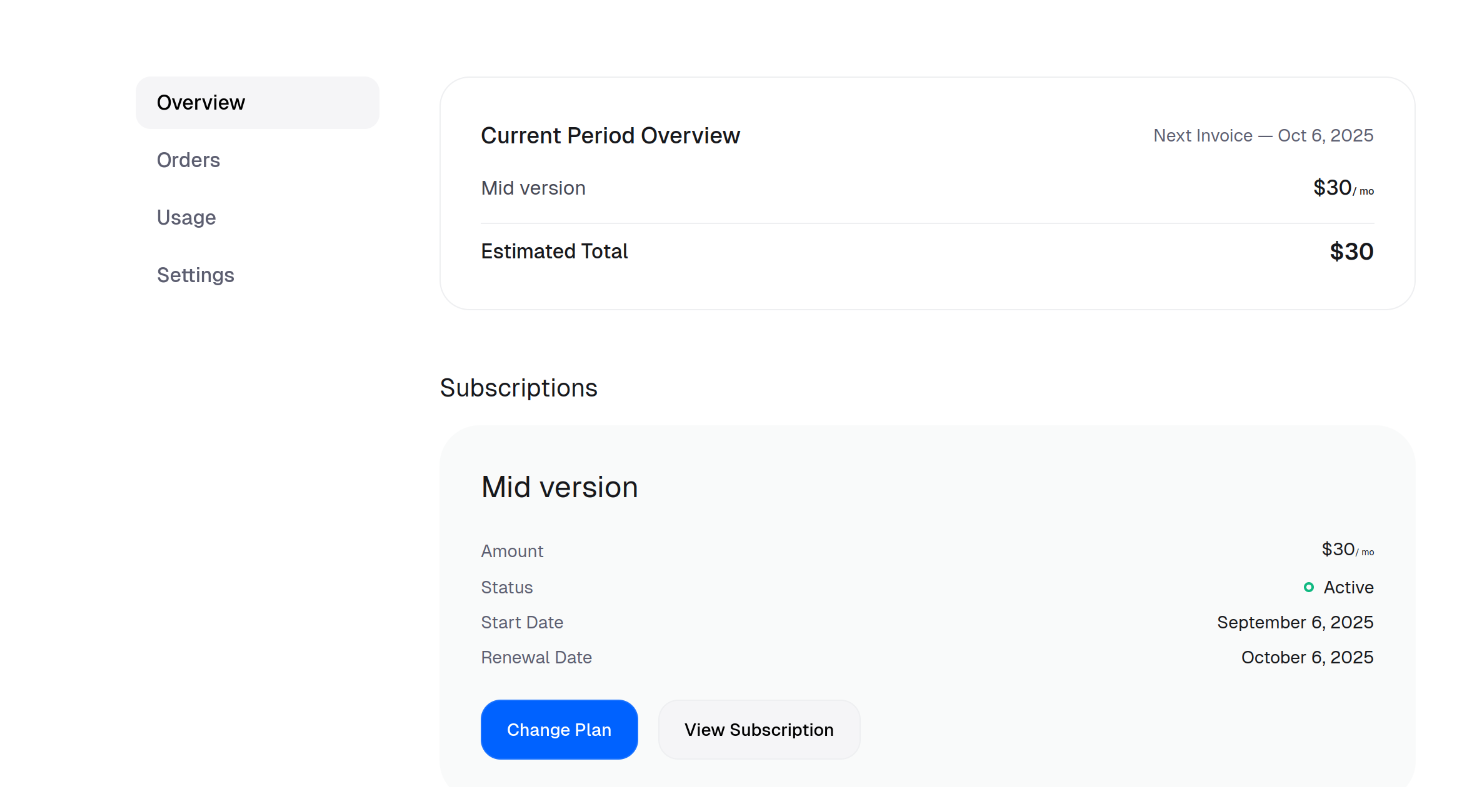
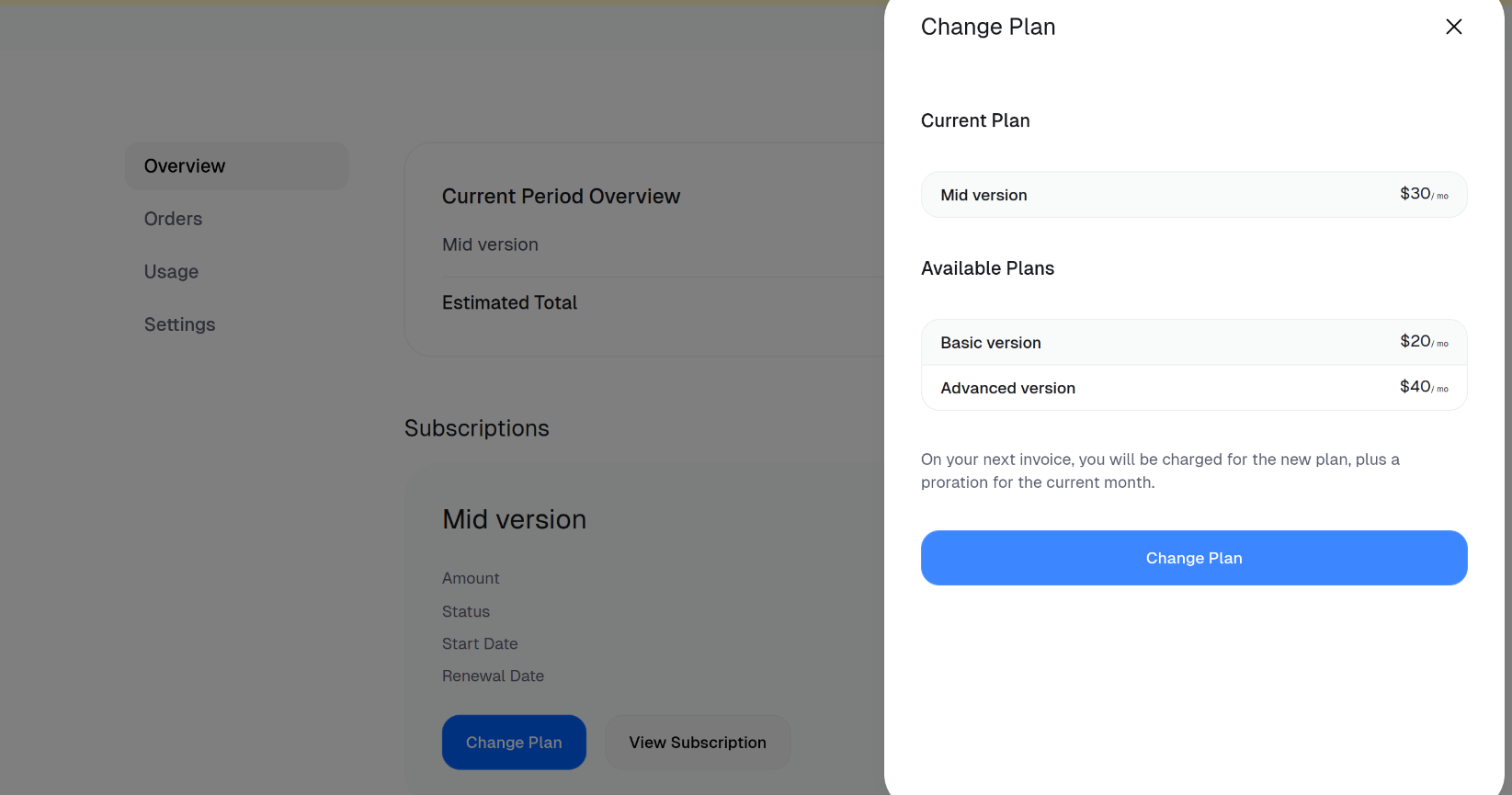
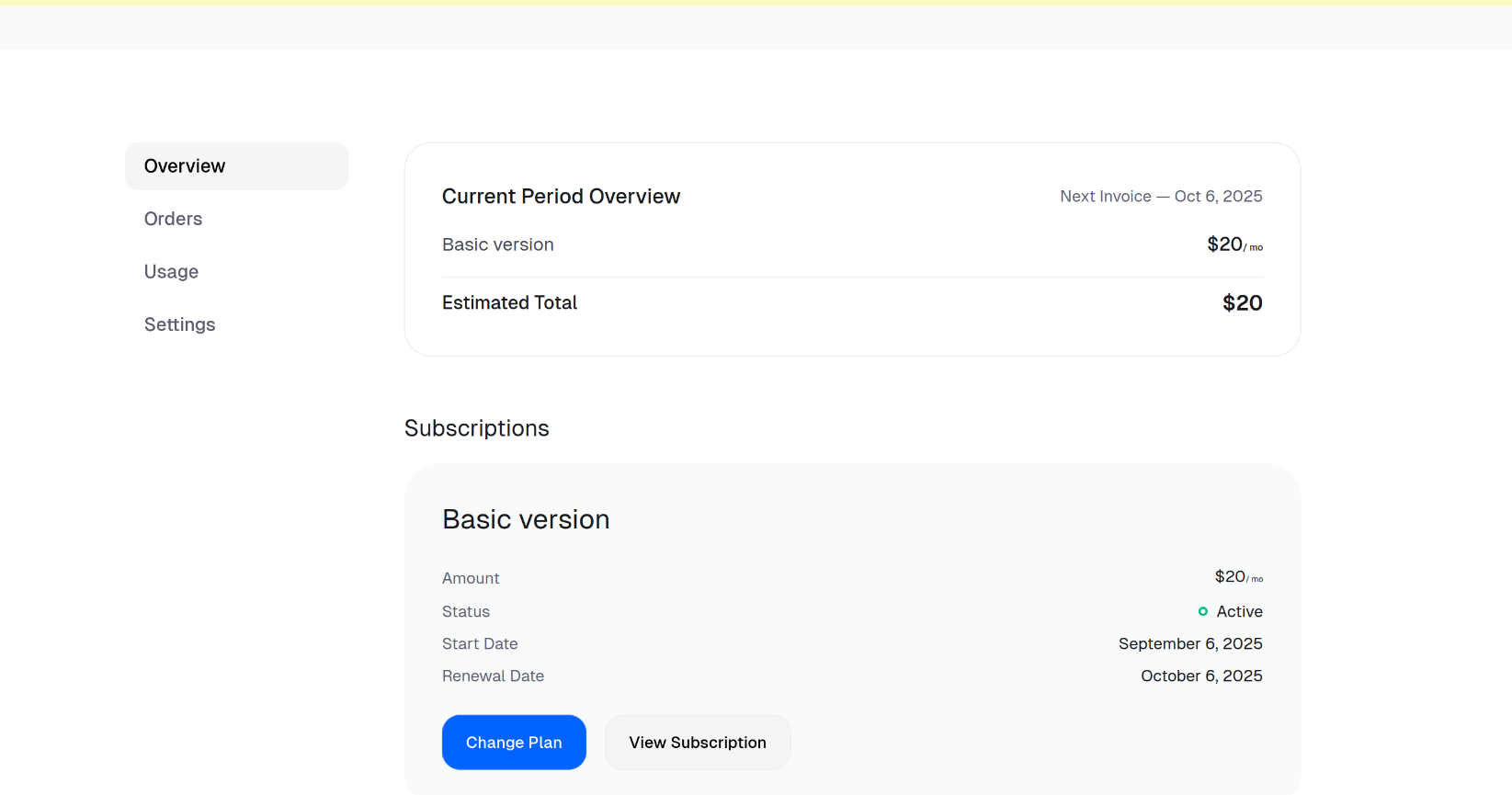
In the Overview tab of Customer Portal, scroll to Subscriptions and click on Change Plan.