Documentation Index
Fetch the complete documentation index at: https://polar.sh/docs/llms.txt
Use this file to discover all available pages before exploring further.
Creating product variants (3 subscription products)
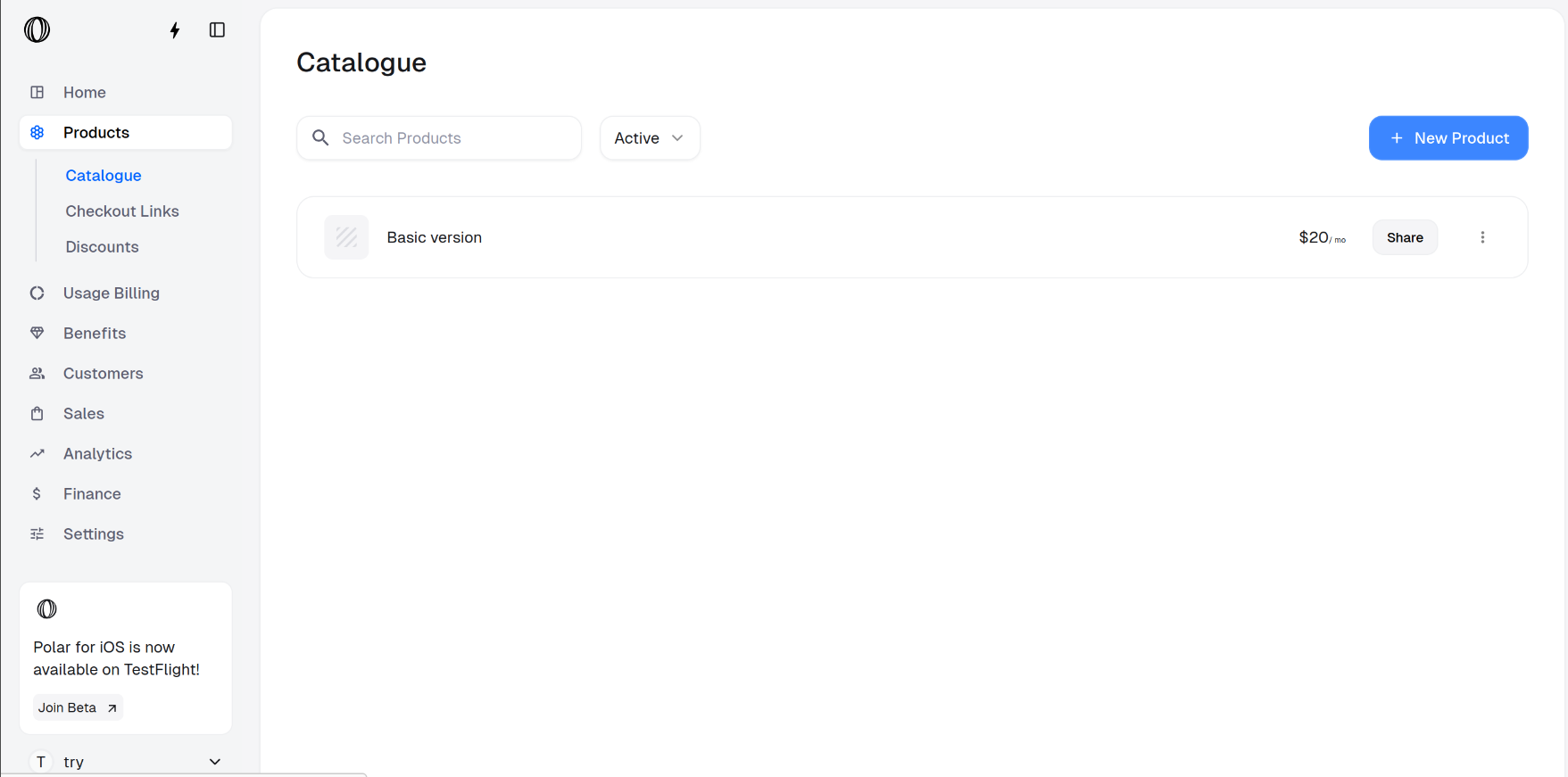
Go to Products Catalogue
In the Polar dashboard sidebar, navigate to Products > Catalogue for your organization.
You can also go directly to:
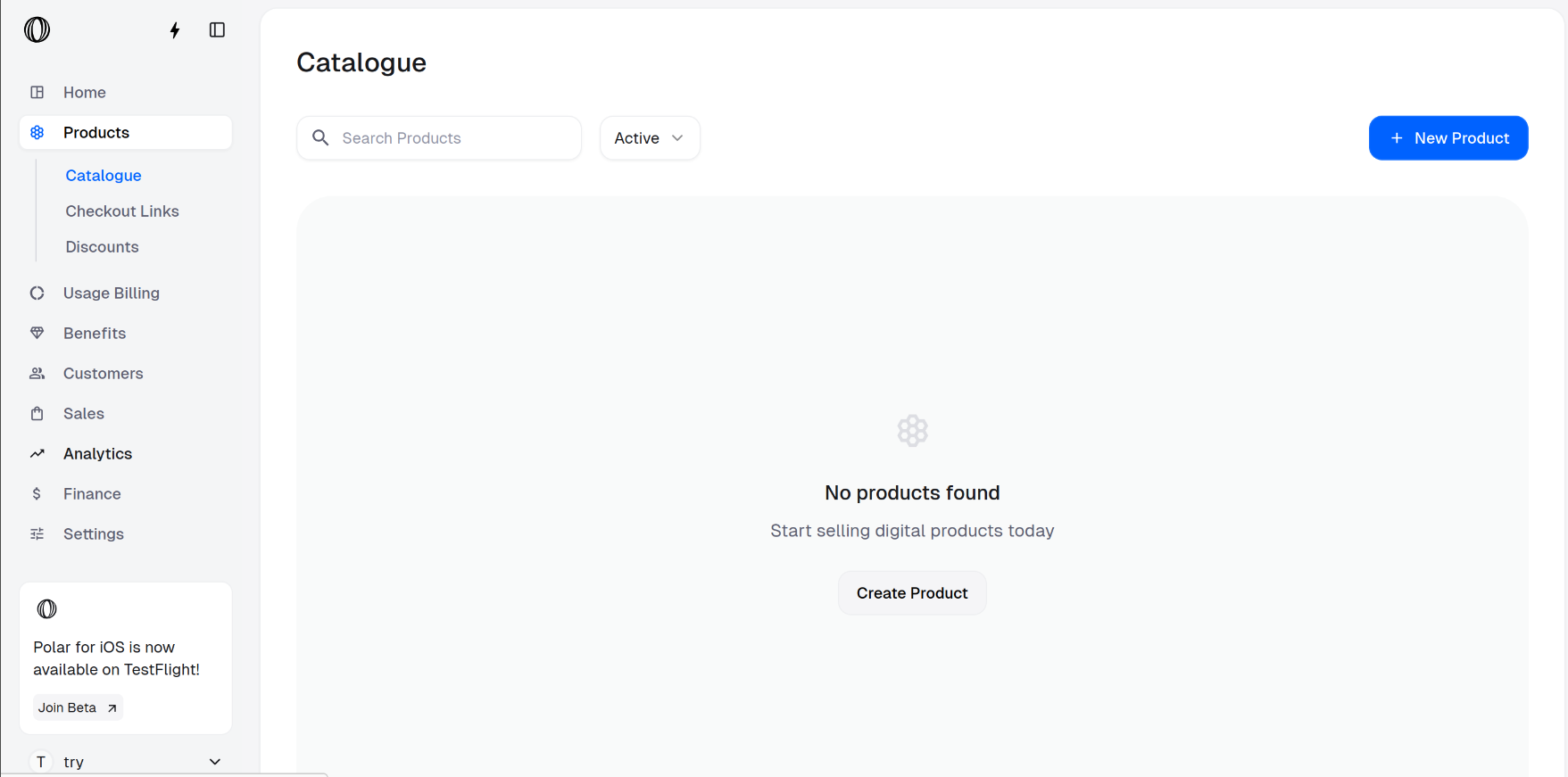
https://polar.sh/dashboard/${org_slug}/productsCreate a product
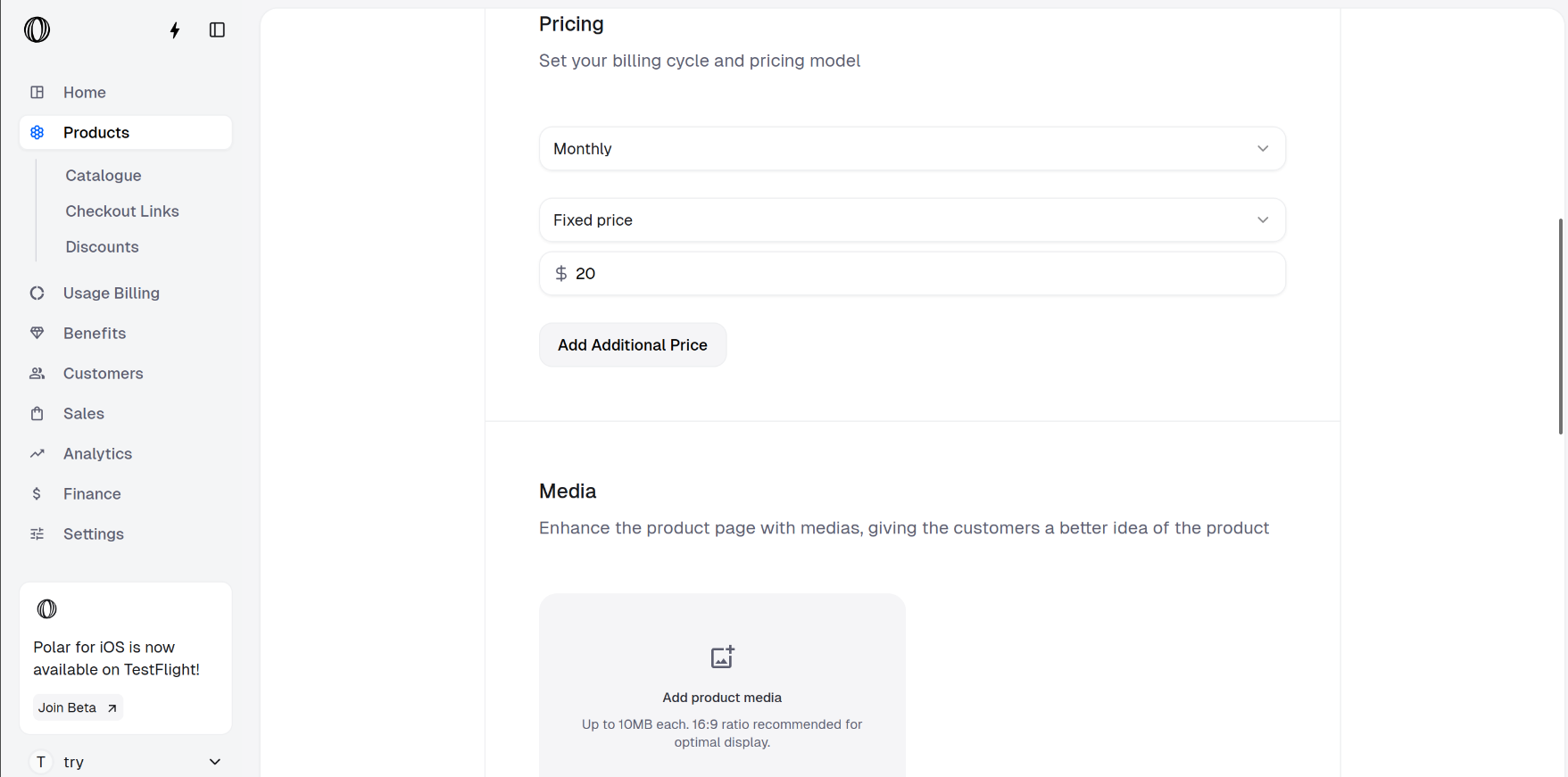
Click on New Product and fill the product information. Here, we are creating a monthly subscription product Basic version with cost $20.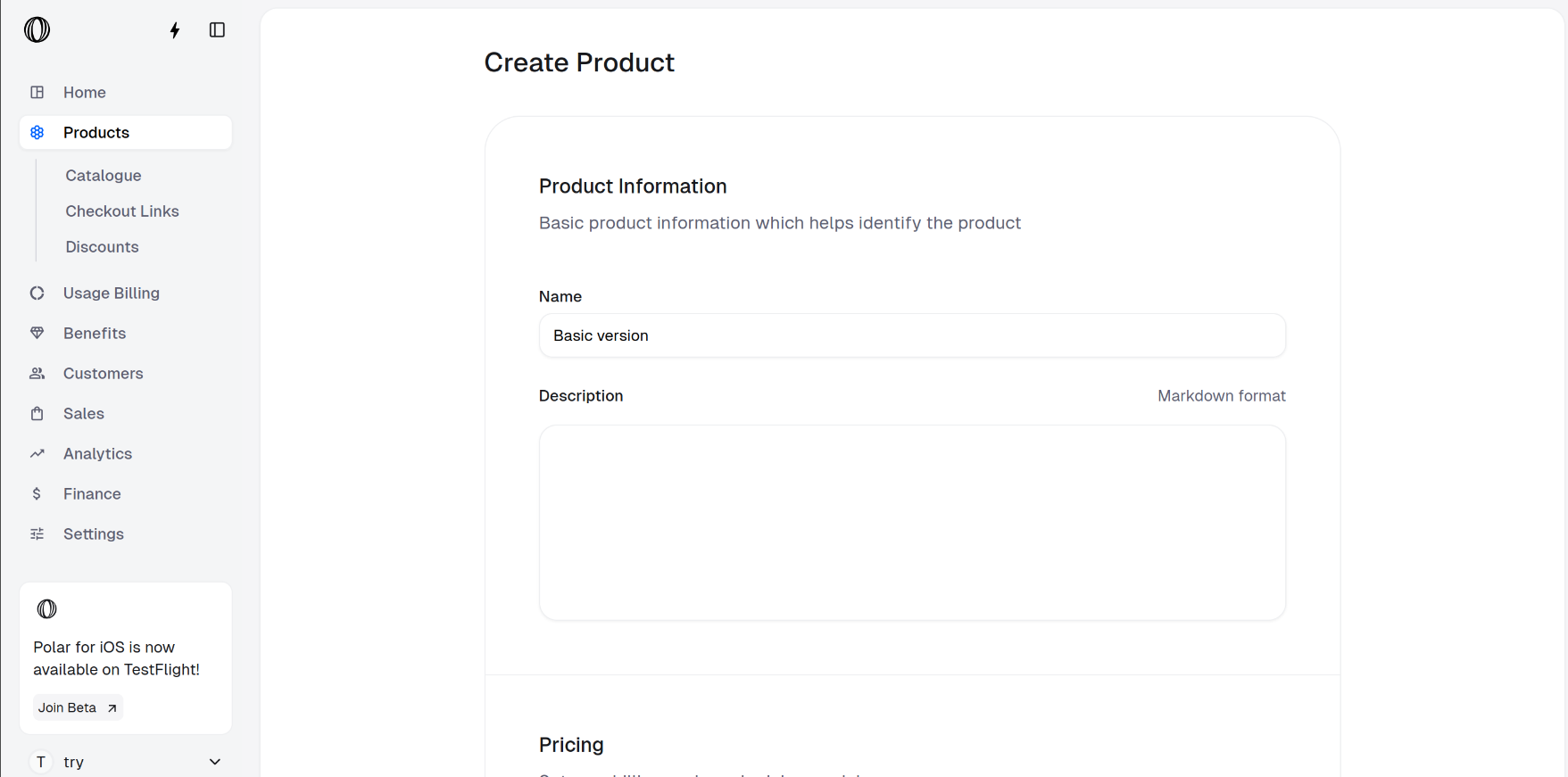
Similarly, create two more products
Click on New Product and create two more subscription products one by one.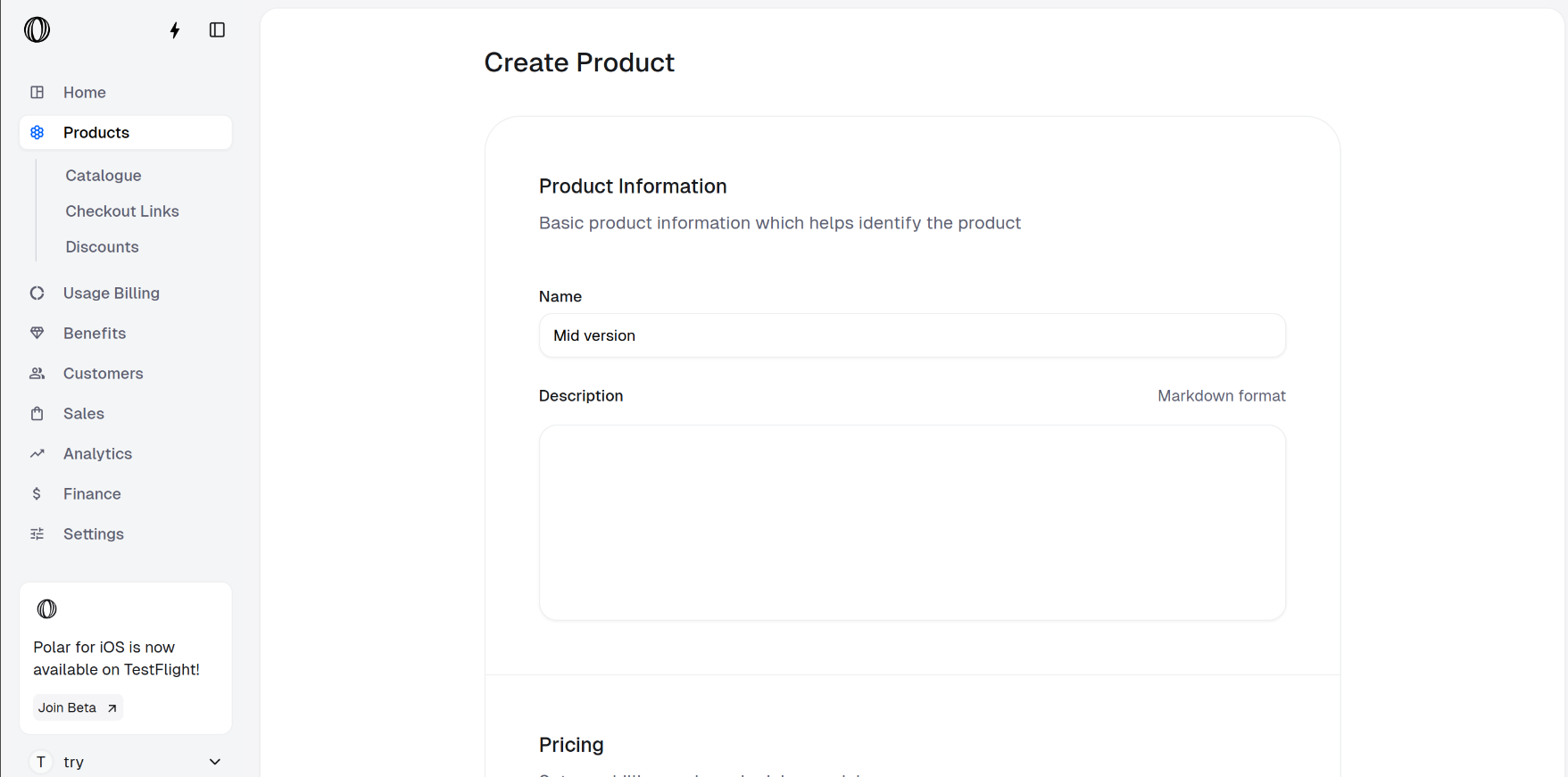
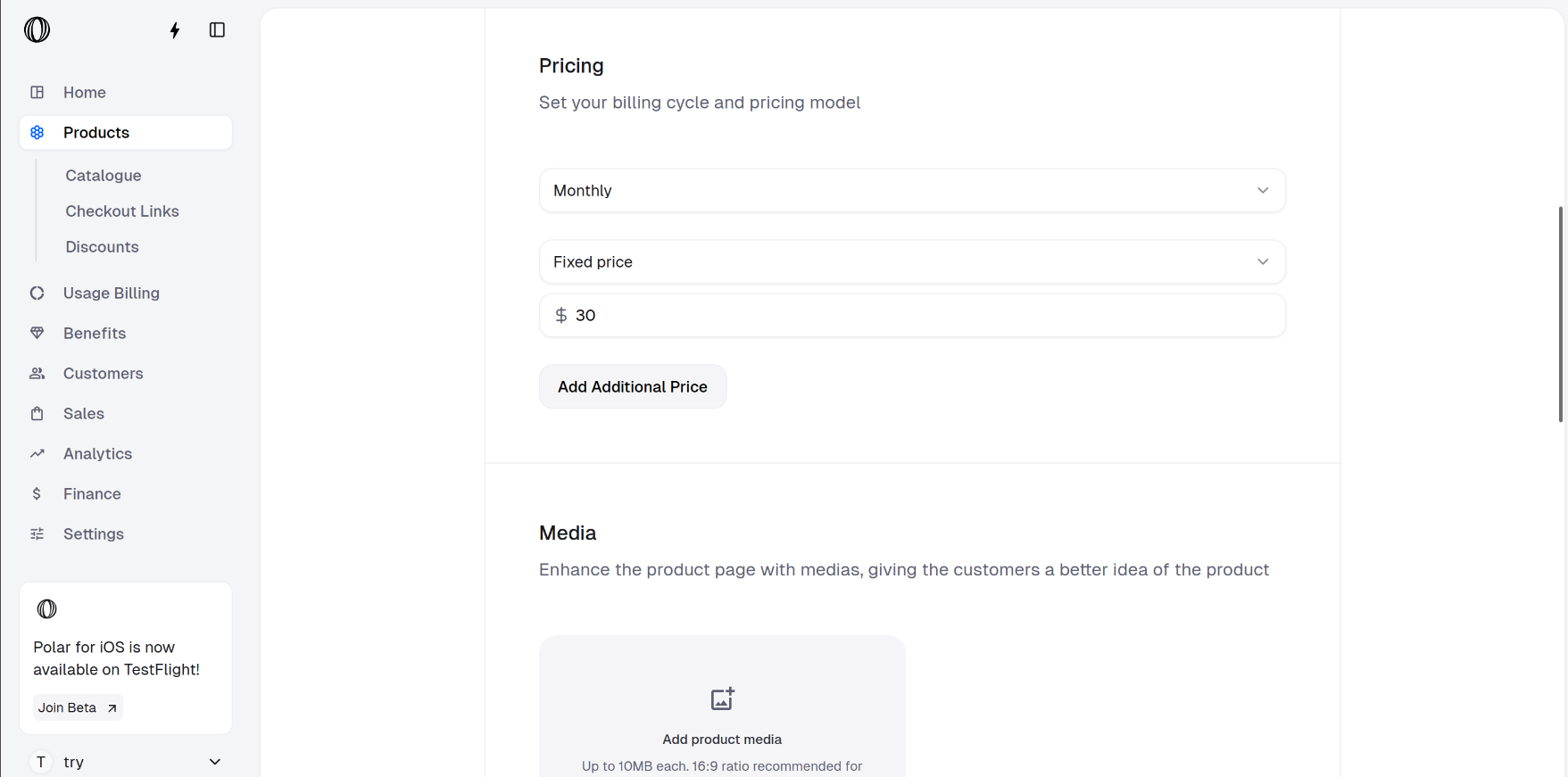
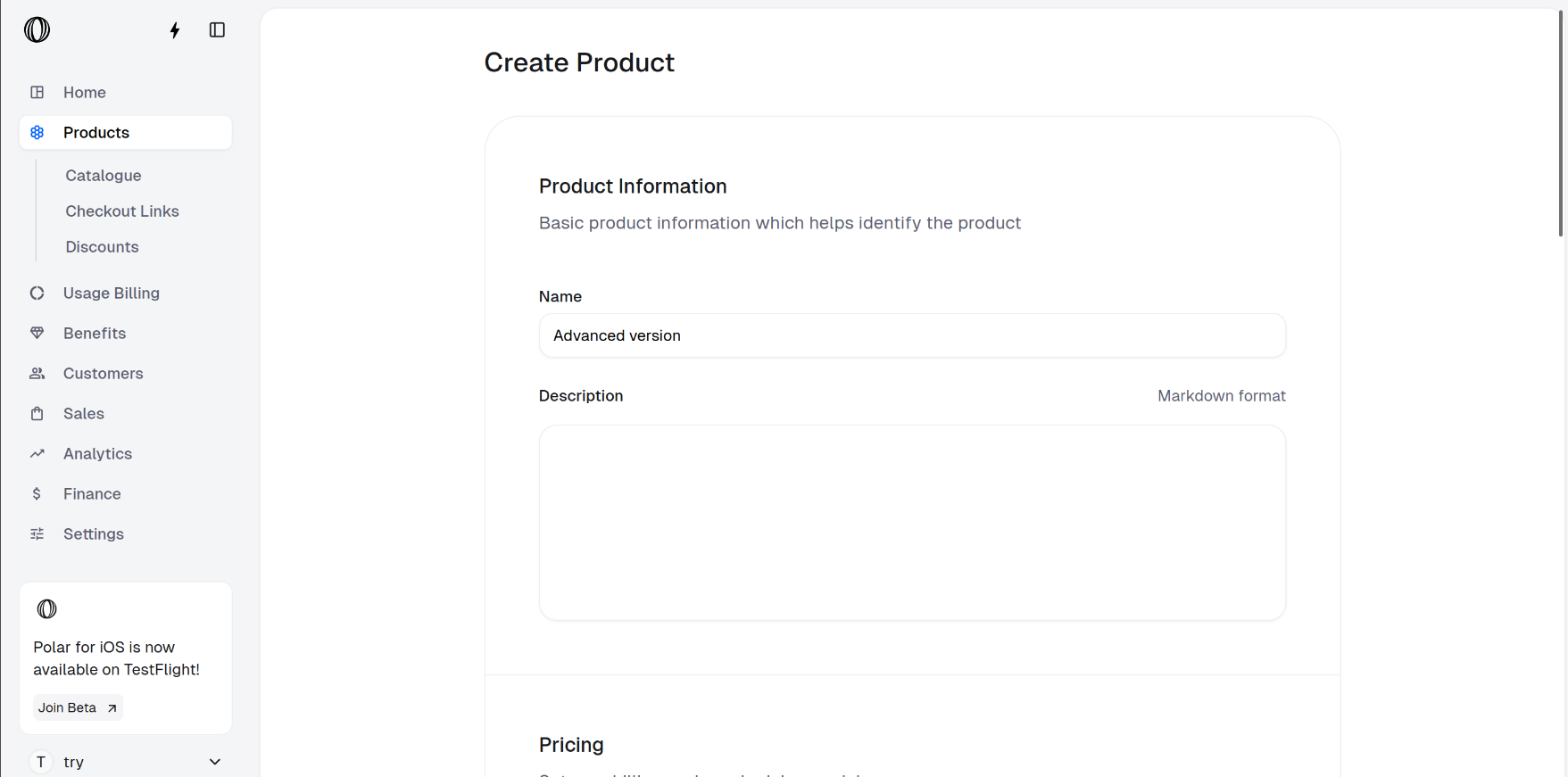
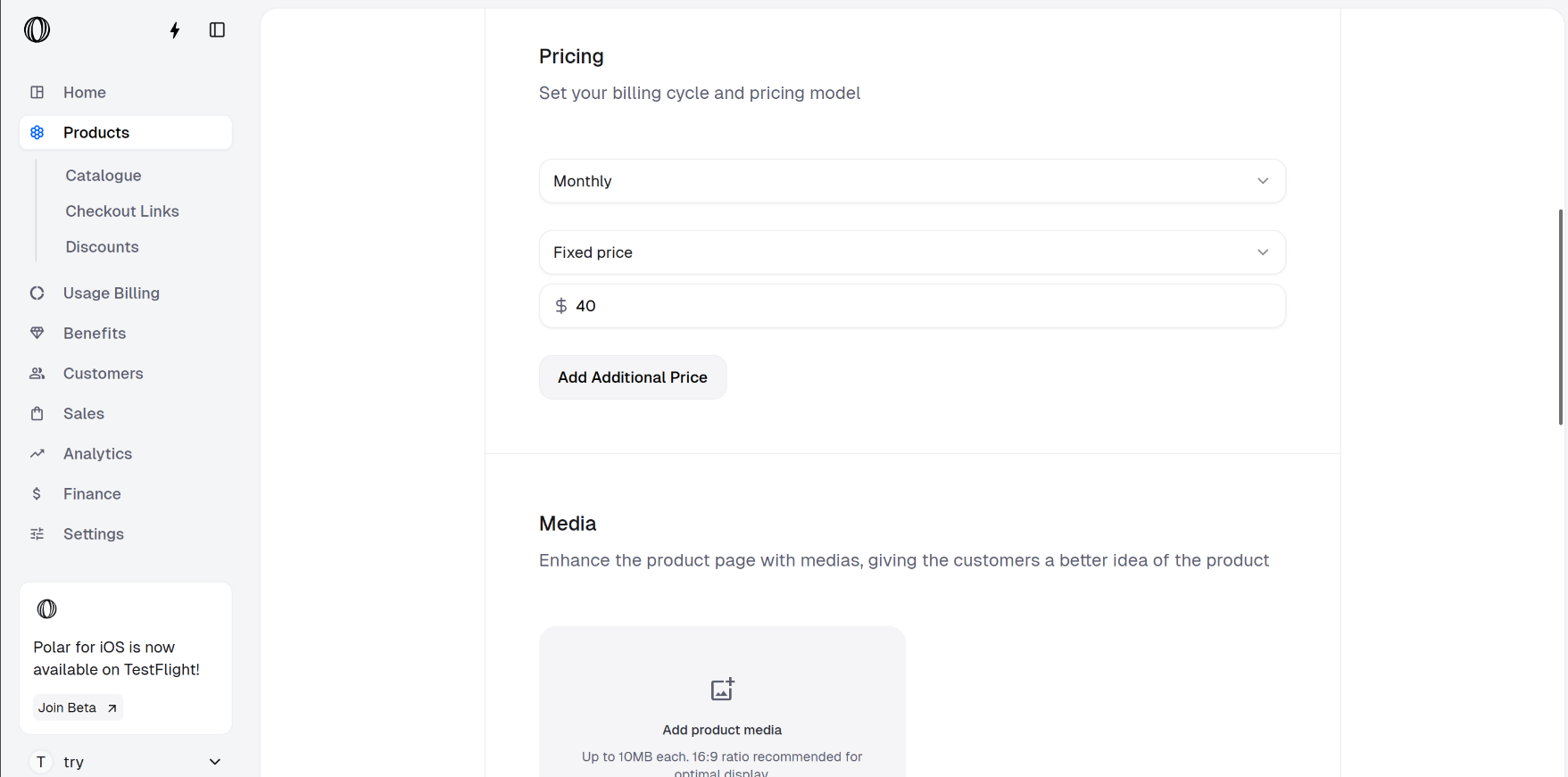
- Mid version: Fill the product information. We create a monthly subscription product named Mid version with cost $30.
- Advanced version: We create a monthly subscription product named Advanced version with cost $40.
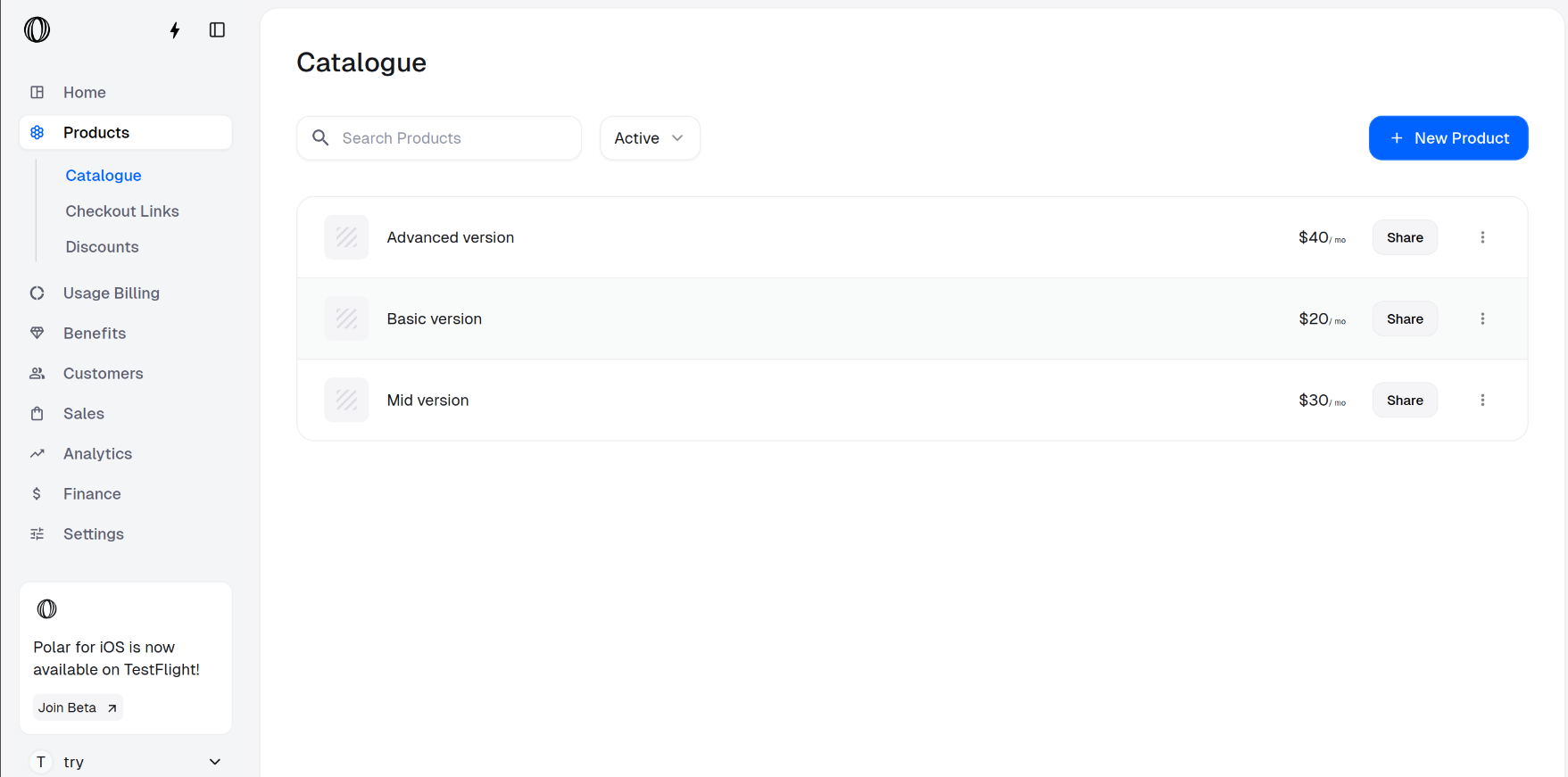
- Product Catalogue: You should be able to see all your products on Product Catalogue.
Creating checkout links with variants
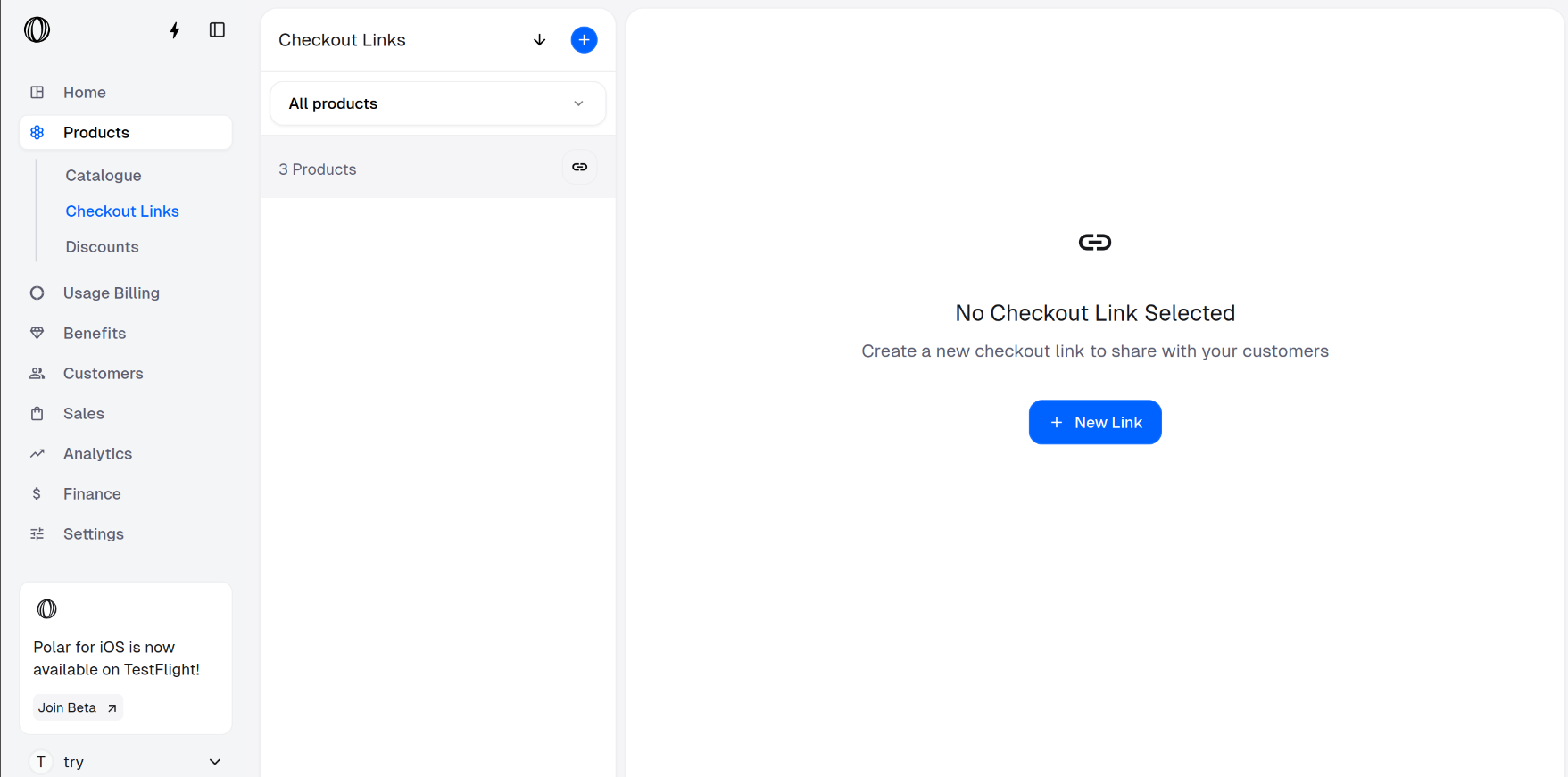
Navigate to Checkout Links in the dashboard
In the Polar dashboard sidebar, navigate to Products > Checkout Links.
You can also go directly to:
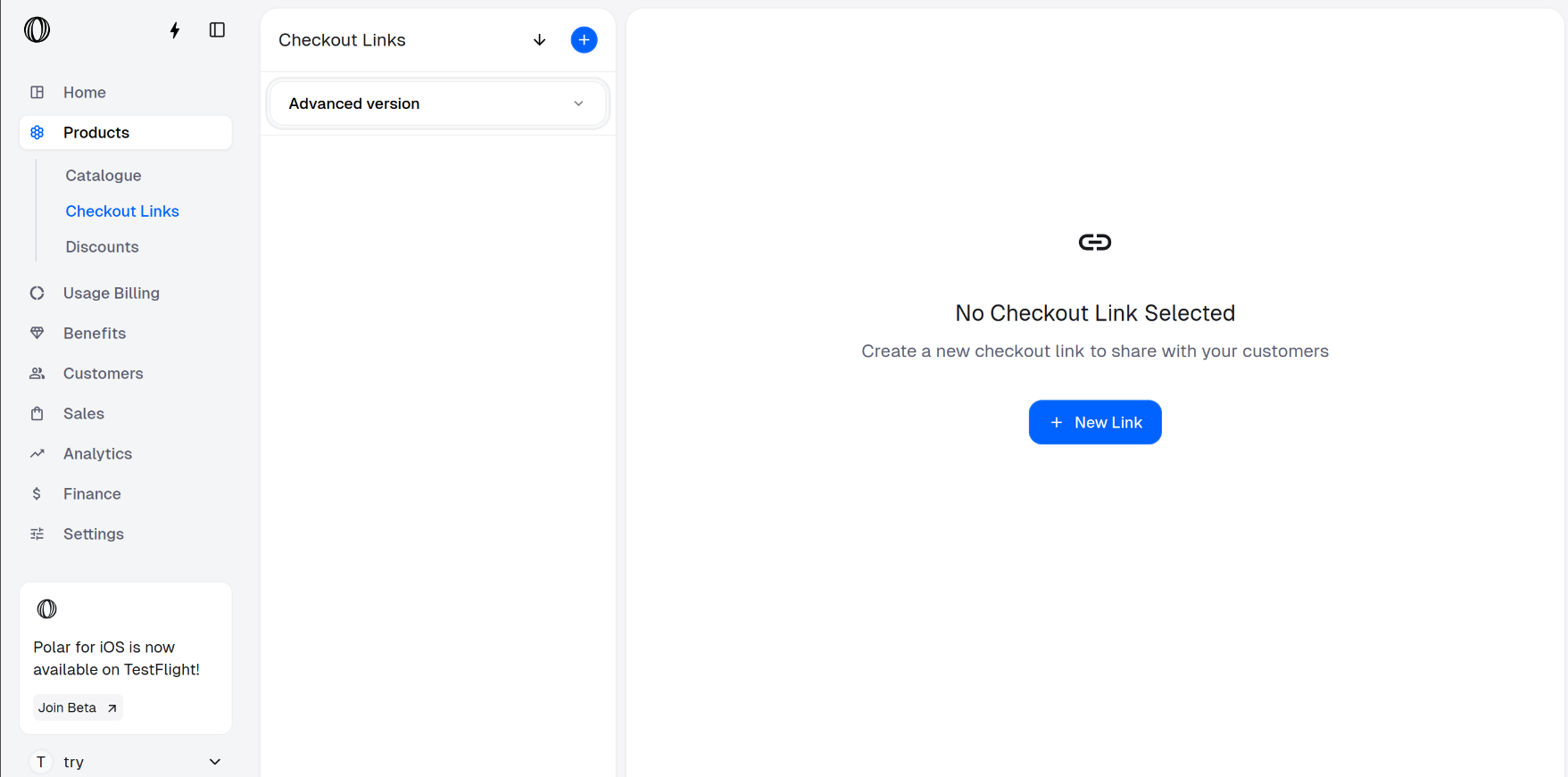
https://polar.sh/dashboard/${org_slug}/products/checkout-linksCreate a Checkout Link
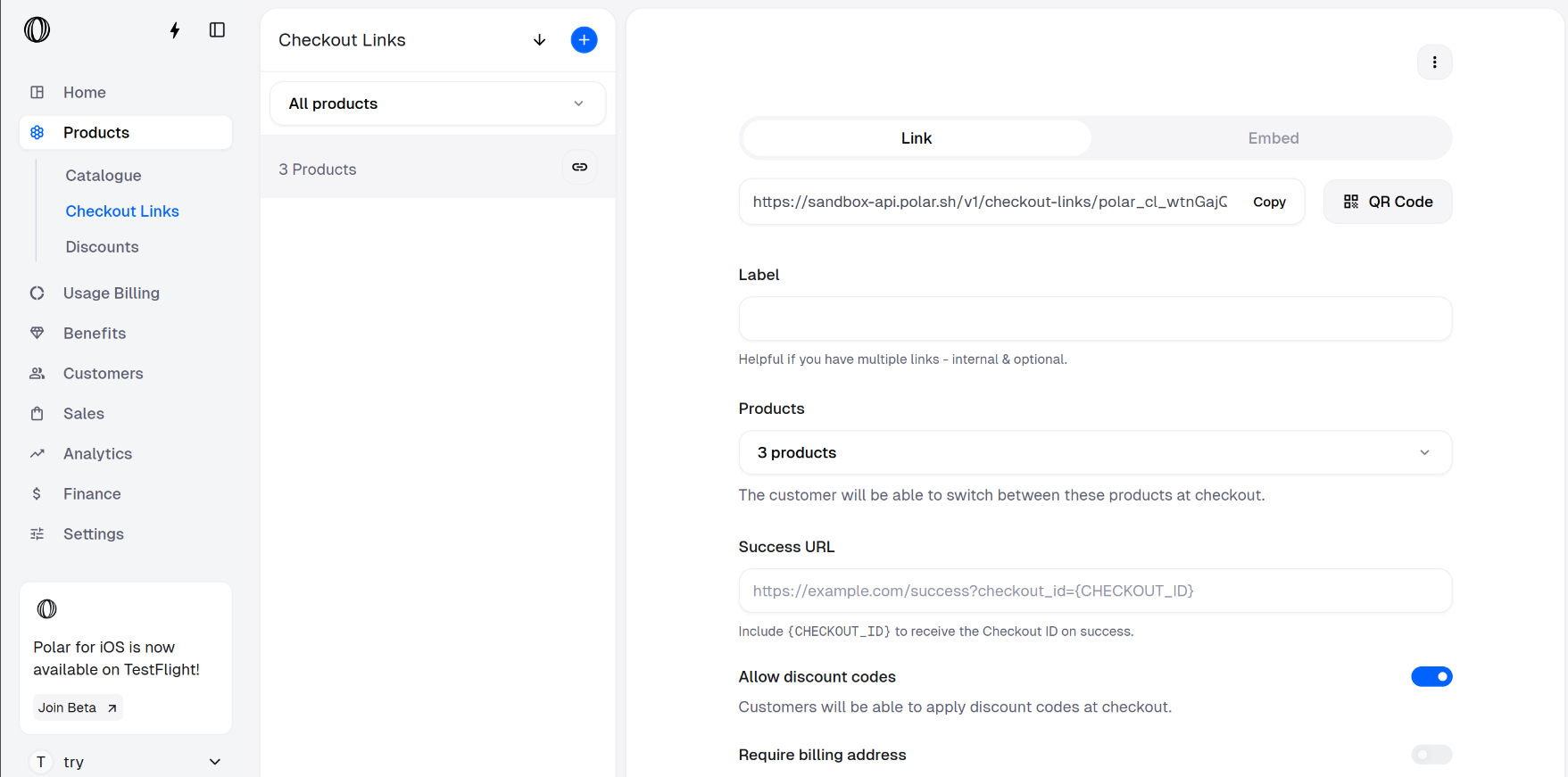
Click on New Link and select all your products which you want to offer as variants.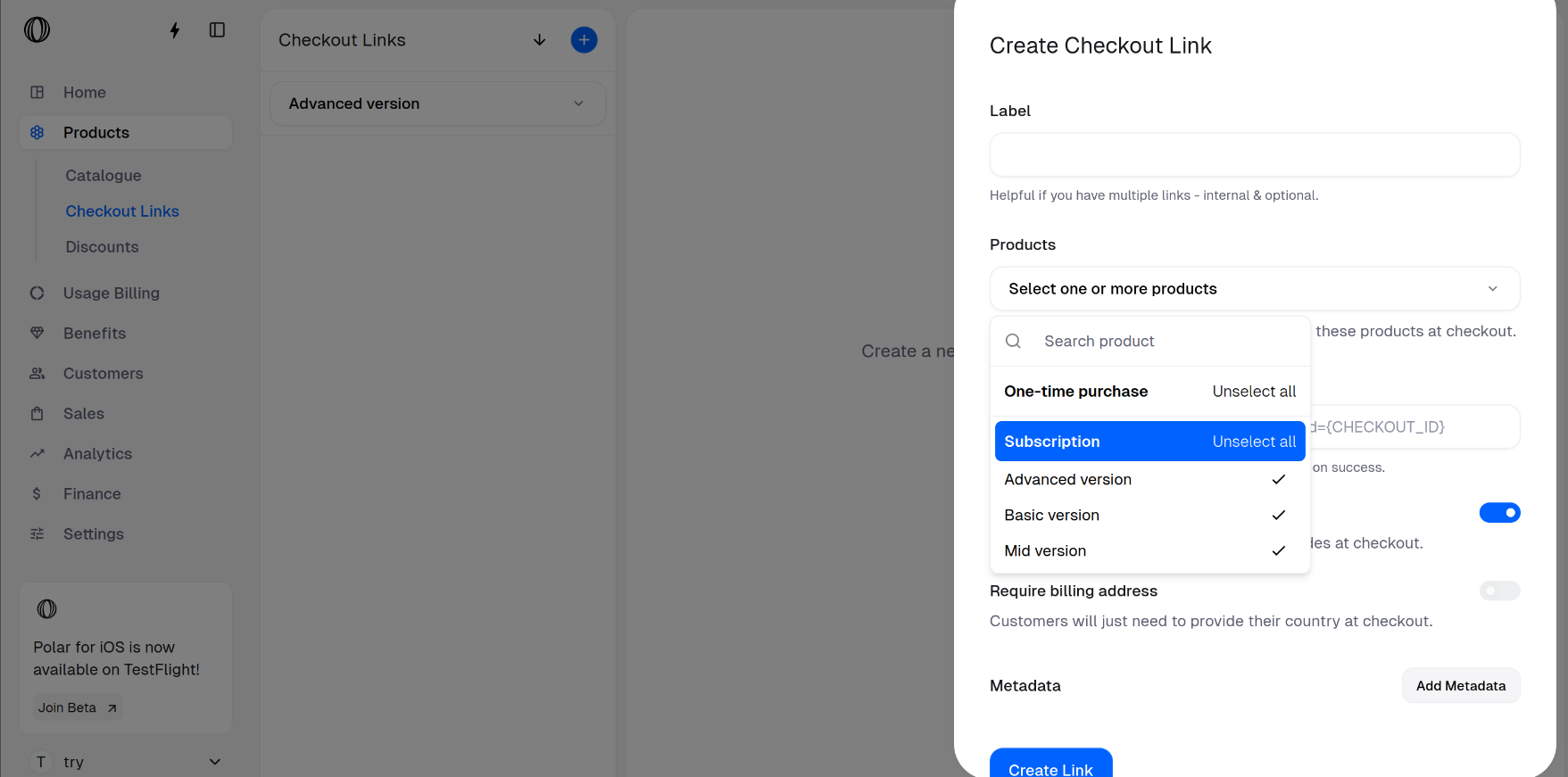
Purchasing from variants
Purchasing a product
On opening the checkout link, the customer will need to select the variant they want to purchase and fill their email address and card details.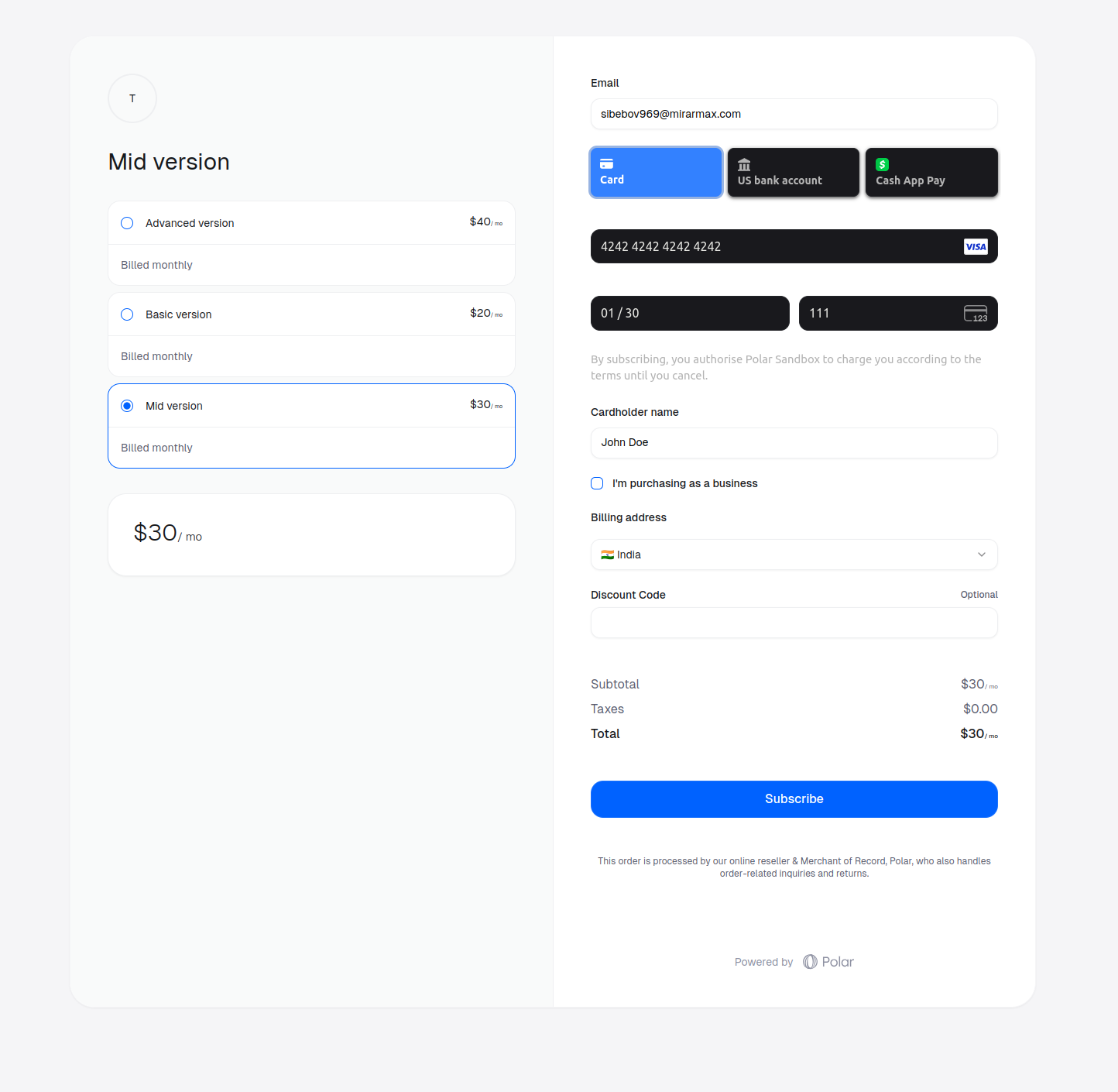
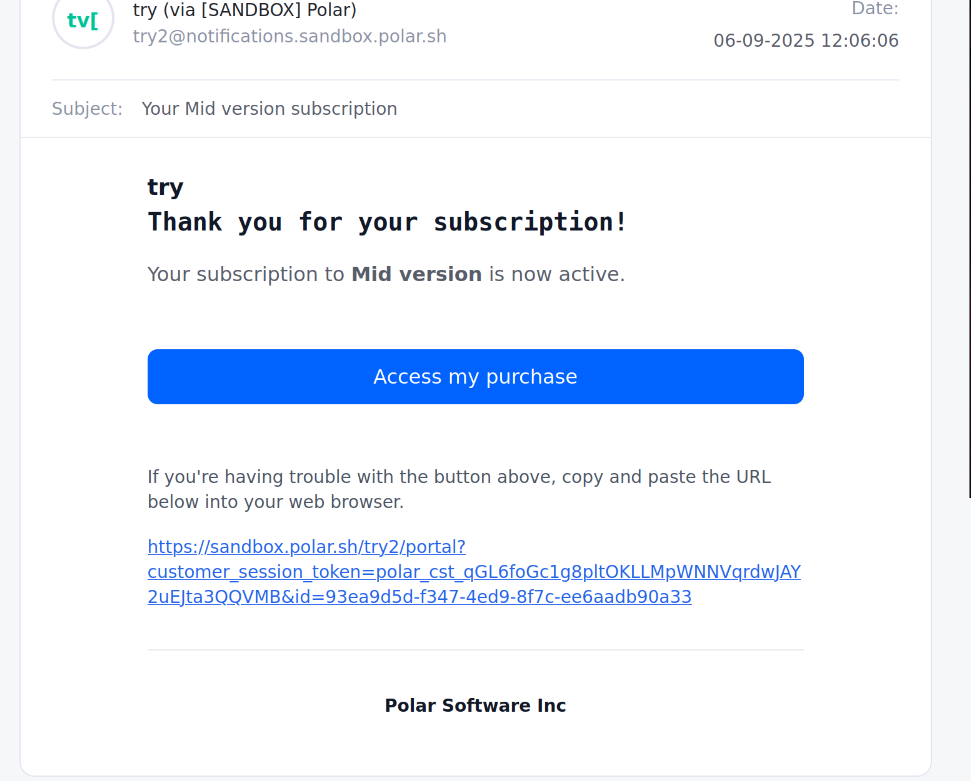
Downgrading to another product variant
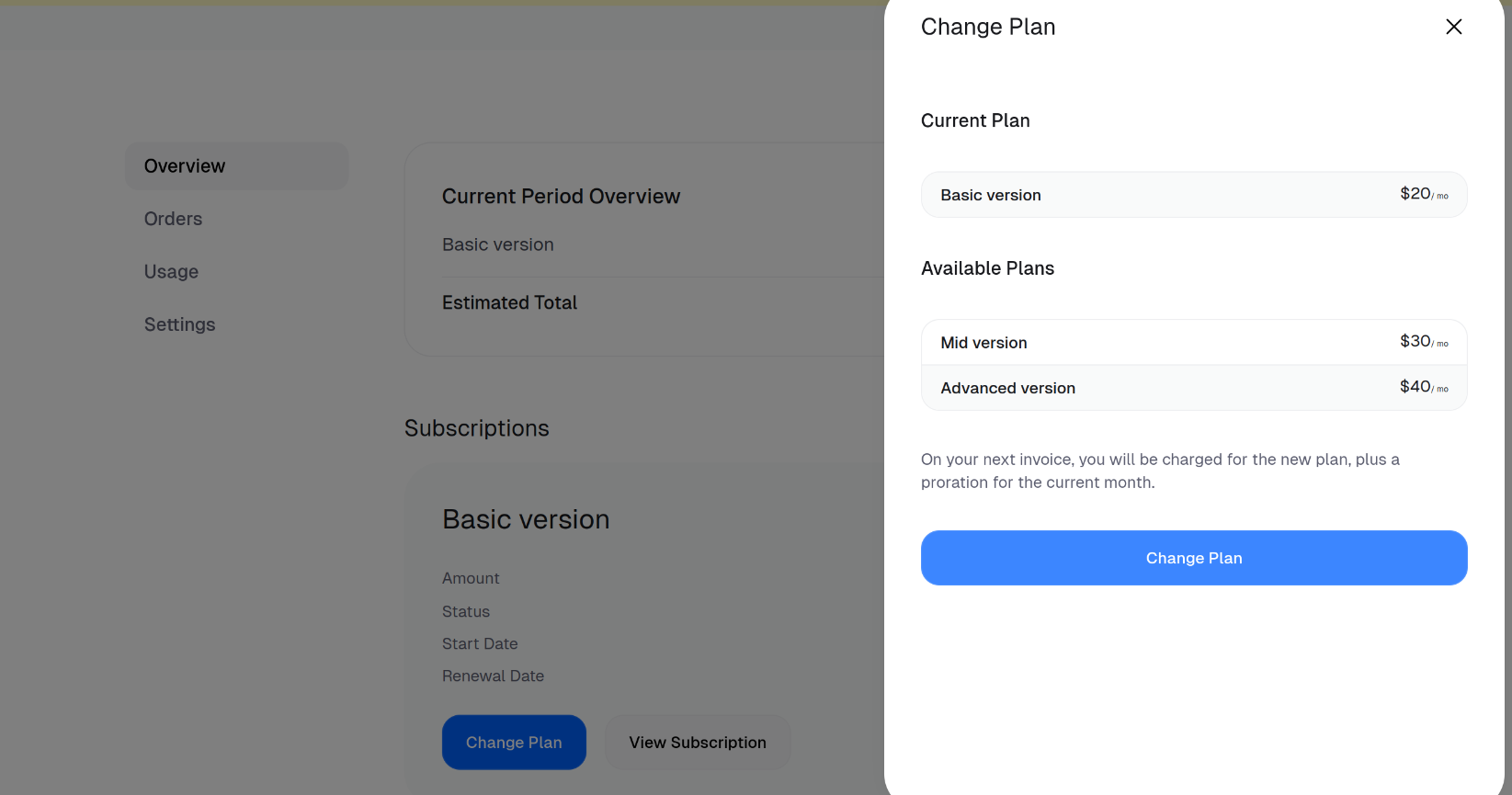
Open Customer Portal and click on Change Plan
On opening the link from the email received, the customer needs to click on Change Plan.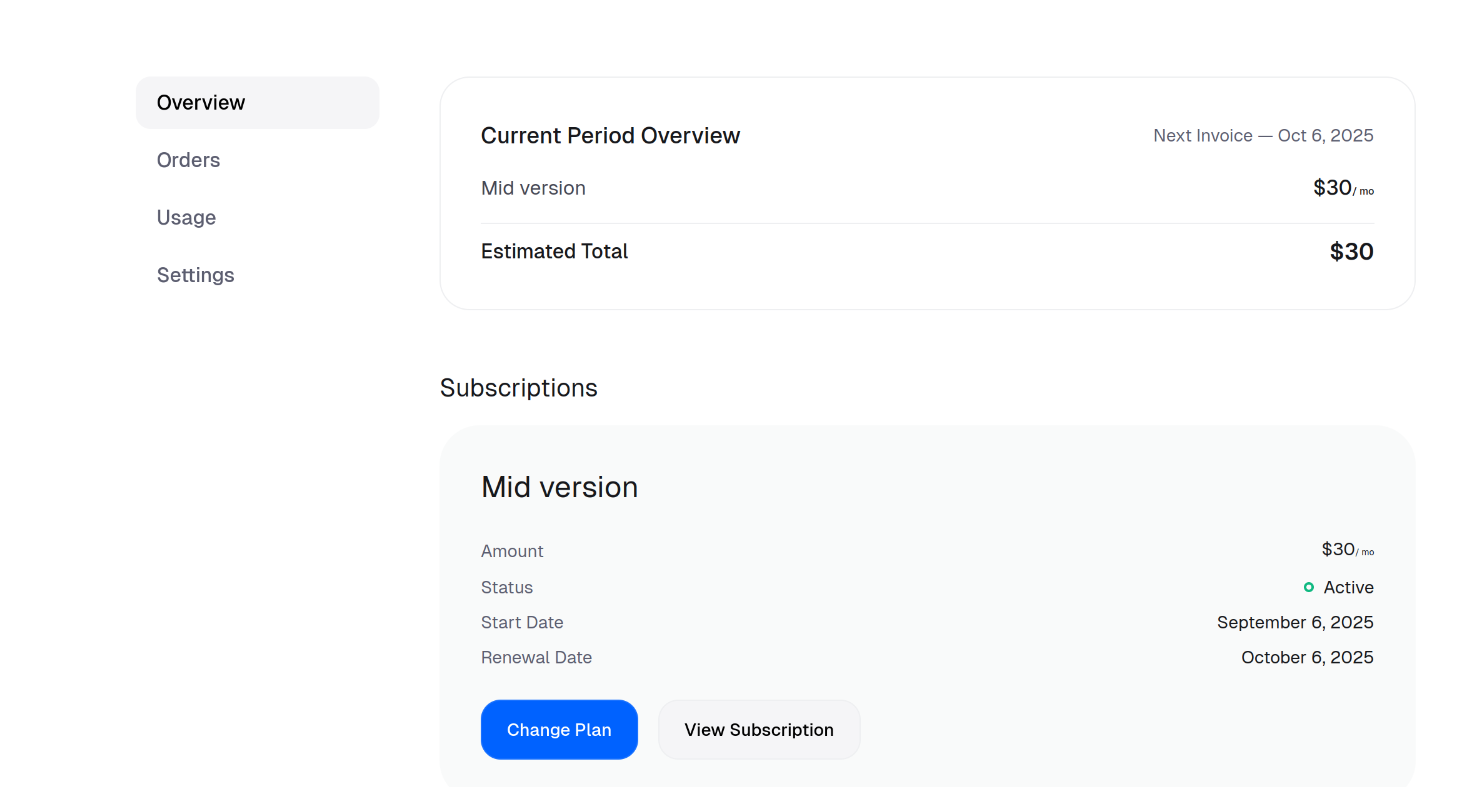
Select the desired plan
Then, they can select the plan they want to downgrade to and click on Change Plan.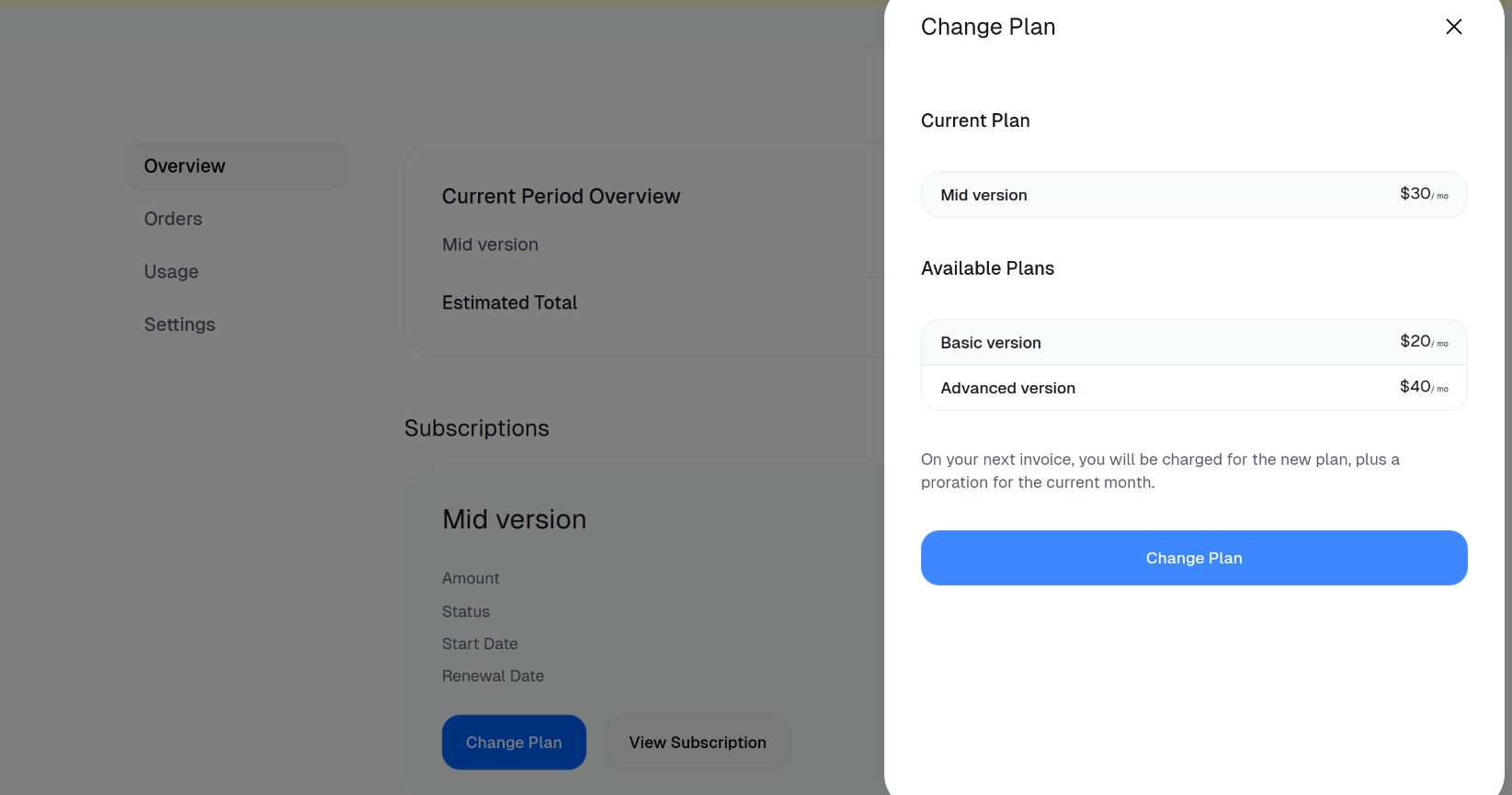
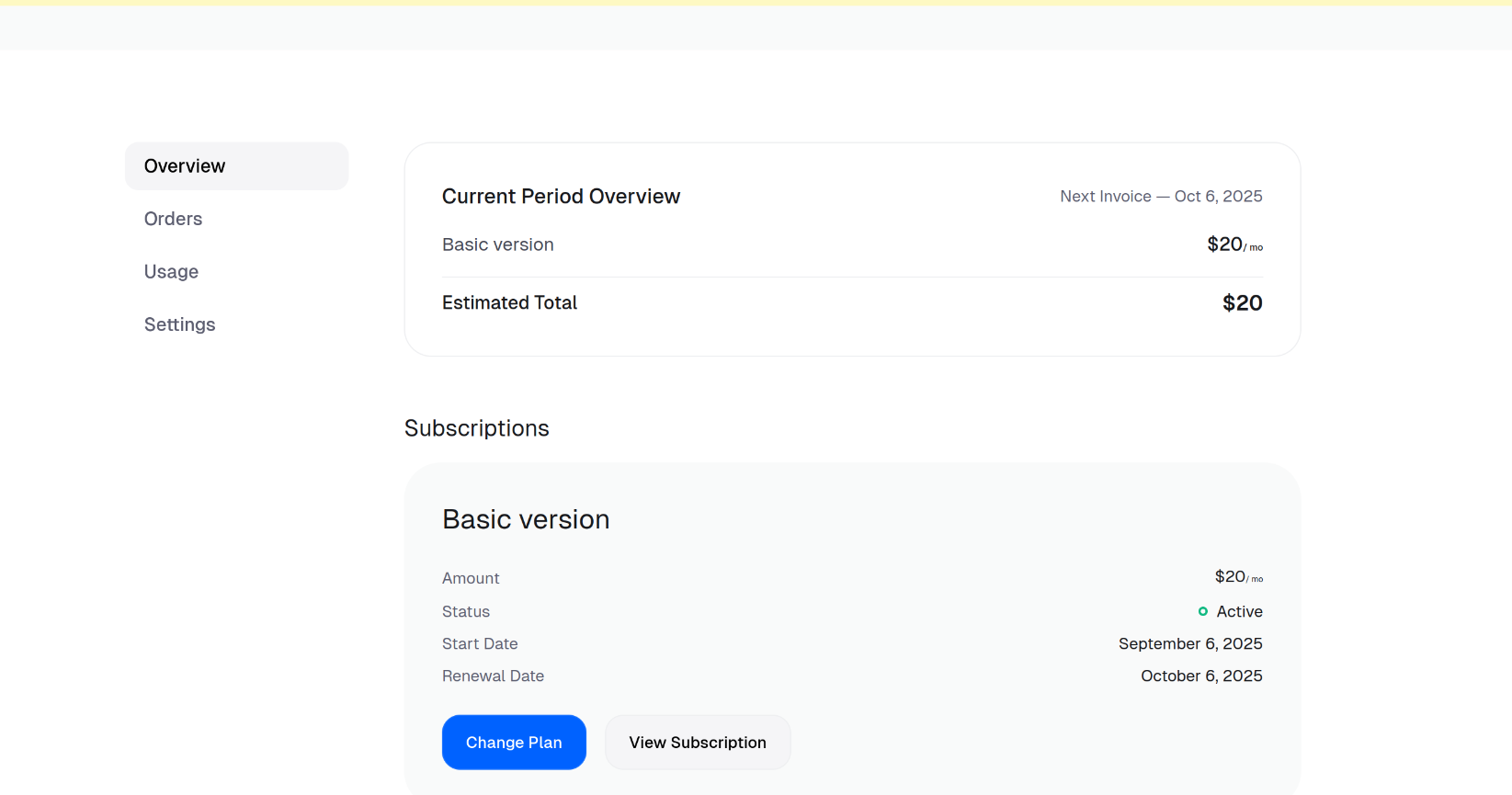
Upgrading to another product variant
Open Customer Portal and click on Change Plan
On opening the link from the email received, the customer needs to click on Change Plan.
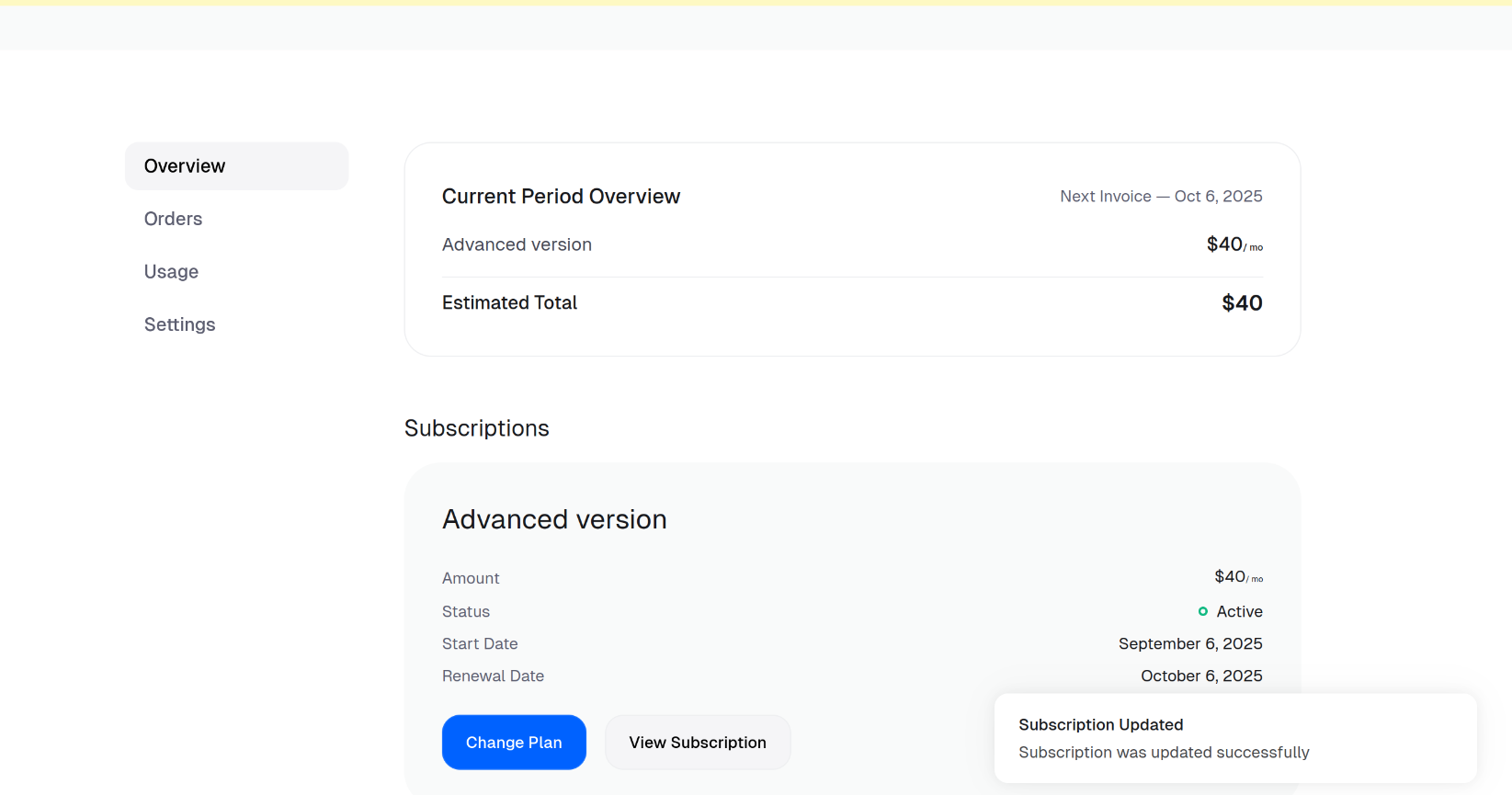
Select the desired plan
Then, they need to select the variant they want to upgrade to, Advanced version and click on Change Plan.